 Aether
Your assistant.On your Mac.
Aether lives on your computer. It looks at your screen only when you ask, remembers what you tell it, learns when you correct it and asks your yes before it acts.
Free and open source (MIT). For Macs with Apple Silicon.
The Companion is an orb one shortcut away. You see it when it works and it calls you when it needs you. Try the scene below.
An illustrative scene with hand-written answers: in the app the answers come from the model you choose.
Aether never watches your screen in secret. A capture is your gesture: you choose, check the preview and decide whether to send it.
Entire screen or an area.
Press the camera button in the Companion. The Companion hides for a moment so it is not in the picture.
Screenshots of the Mac app, not mockups.
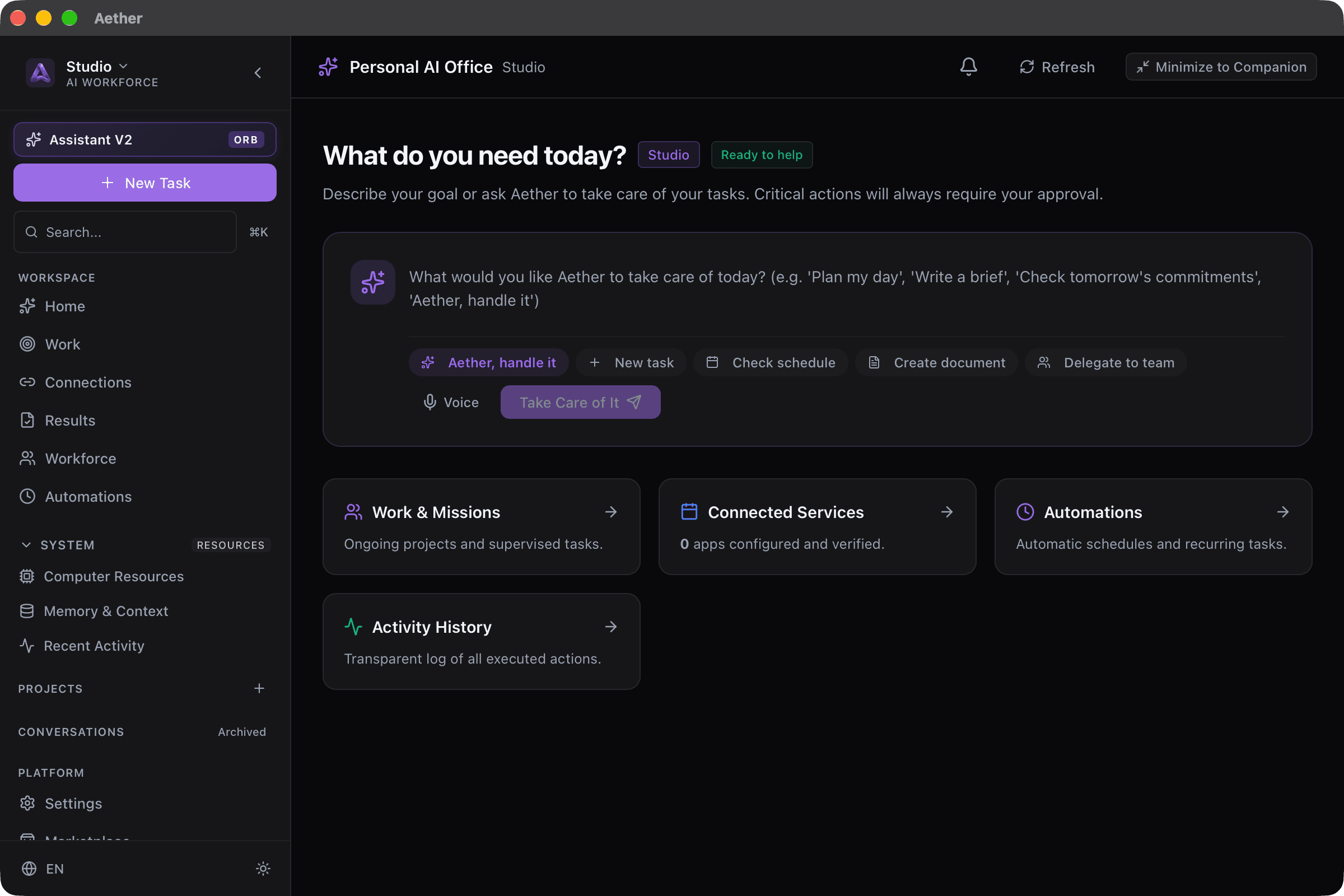
The main window
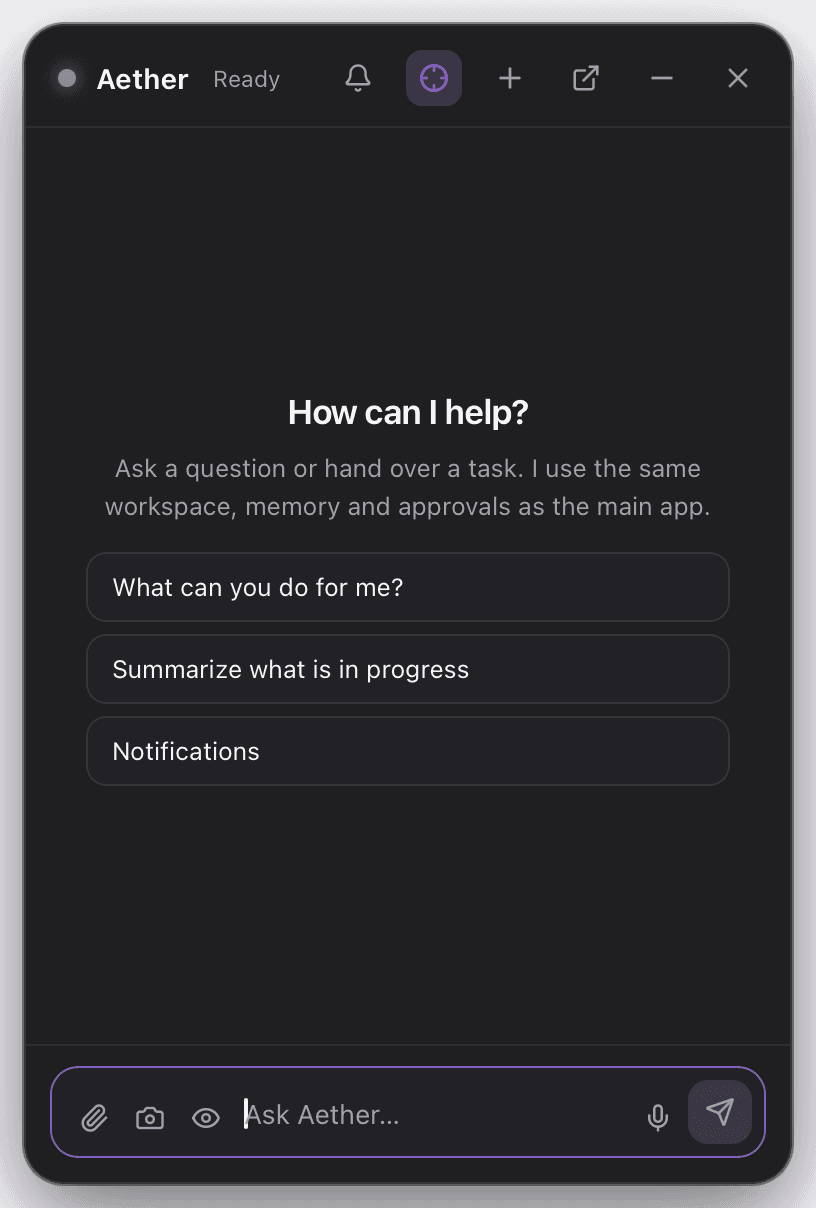
The Companion
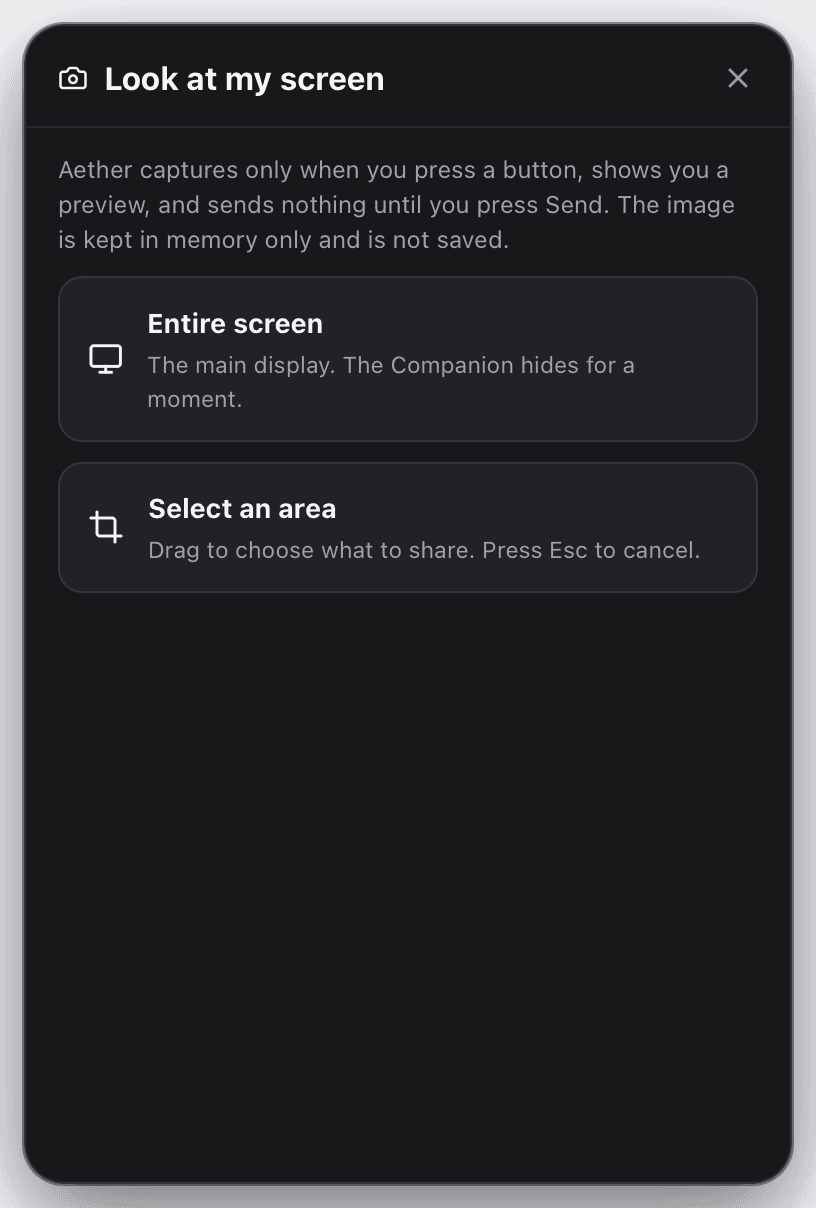
Choose what to share
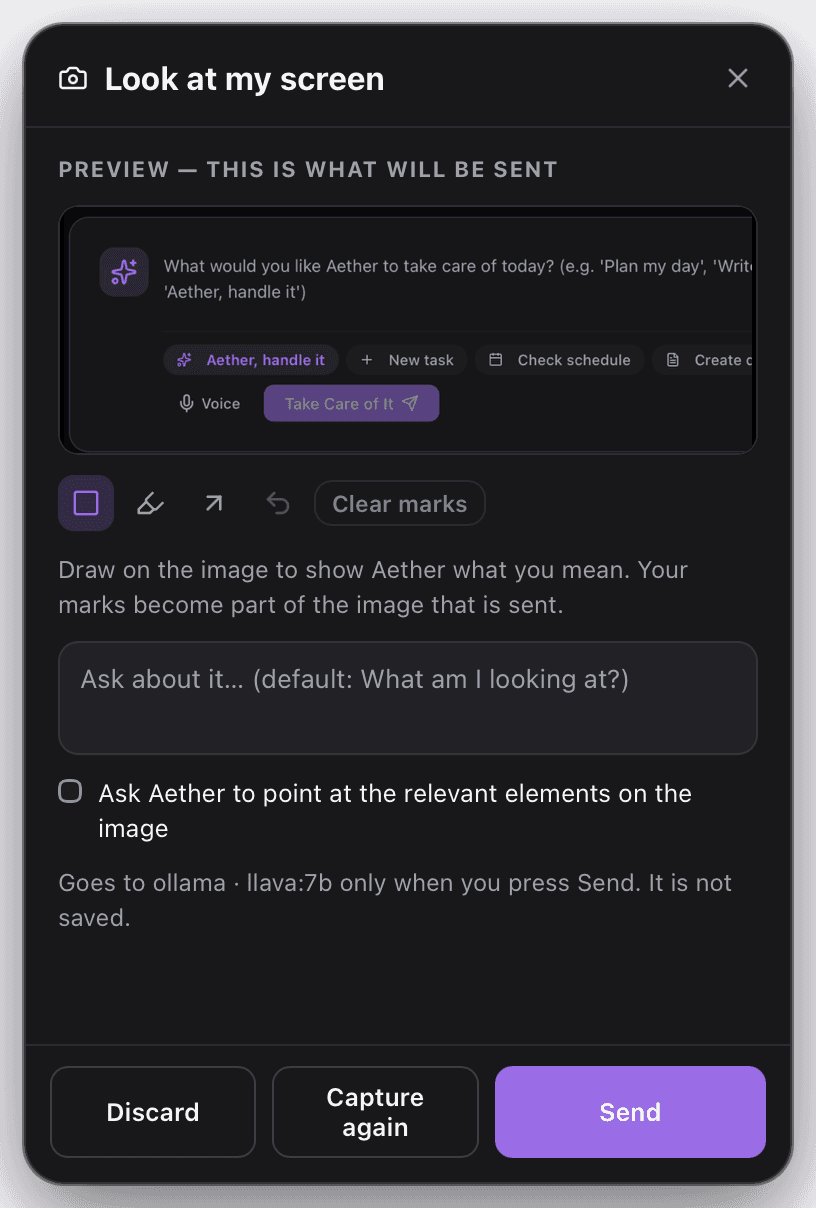
You check the preview
Real screenshots, with a test workspace.
Aether's memory is yours, on your computer, and you can read and edit it. The more you use it, the less you repeat.
Corrections become lessons, with the evidence that produced them. Lessons come back in later requests.
A knowledge base that is yours.
Documents and relationships become a knowledge graph Aether consults when it answers. You can see it and edit it.
Facts
What is true about you and your work.
Preferences
How you like things done.
Decisions
What you already decided and why.
Processes
How you work, step by step.
People
Clients, colleagues, contacts.
Projects
What is running and by when.
Outcomes
What was delivered.
Lessons
Rules born from your corrections.
“Remember that…”
Just say it: the sentence becomes an explicit memory, recalled in later sessions.
No surprise overwrites.
When Aether edits one of your documents, the previous version stays saved.
For bigger jobs Aether coordinates specialised agents, each with its own role, tools and rules. You customise them.
Research
A coordinator who plans and specialists who read, compare and summarise.
Development
A team that tackles code with separate roles and checks.
Operations
For a business's everyday processes.
Starter
The starting point to build your own.
Just describe it.
Tell it what you need: the Auto-Architect proposes the team, and you review roles and tools before applying it.
Community teams, coming.
Publishing and installing other people's teams, with a permissions summary, is on the roadmap. Today teams are created and installed locally, from presets.
Aether runs on your computer. You decide where your text goes.
Stays on your Mac
- Memory, knowledge and conversations
- Your documents and workspace
- Provider keys, in an encrypted store on your Mac
- Screen captures: the image is never saved; a short text note is kept only if you ask, for 7 or 30 days
- A ledger of what left your computer: kinds and counts, never the content
Goes where you choose
- With a local model (Ollama): nothing leaves your computer
- With a cloud provider: your request text goes to that provider
- No fallback provider: if yours does not answer, Aether says so
- Before sending to a cloud provider, IBANs, cards, tax codes, emails and API keys are replaced by placeholders (pattern-based: it can miss things)
Asks before it acts
- Sensitive actions wait for your approval
- What will happen is written plainly
- A rejection changes nothing
- Document writes made by Aether can be undone, if the file has not changed since
Aether tells you what it really verified and never reports as done what is not.
Connect the provider you prefer with your own key, or use a local model.
Looking at the screen needs a vision-capable model. Aether checks which one you picked and warns you before capturing anything.
Free and open source. No account to create.
Mac with Apple Silicon. Free, MIT license.
First launch
- Open the .dmg and drag Aether to Applications.
- On first open macOS may block it: open System Settings → Privacy & Security and choose “Open Anyway”.
- To let it look at the screen, enable Aether under Screen Recording and reopen it.
The app is not notarized by Apple yet, which is why macOS asks for a confirmation. The code is open: you can check it.
Windows
The installer is built and tested automatically, but not yet on a real PC. We are not publishing it for now.
Coming
- Telegram as a second surface
- Spoken answers
- Pointing directly on the screen
- Community teams
Does it watch my screen all the time?
No. It captures only when you press the button, shows you the preview and sends only if you press Send. There is no background capture and the image is not saved.
Does my data stay on my computer?
Memory, knowledge, documents and conversations do. The text of a request goes to the provider you choose: with a local model nothing leaves your computer, with a cloud provider it goes to that provider.
How much does it cost?
Aether is free and open source (MIT). If you want, you pay the cloud provider you connect with your own key. With a local model you pay no one.
Which models can I use?
Groq, OpenAI, Anthropic, Gemini or Ollama locally. There is no fallback model: it uses the one you choose.
Can it use my mouse and keyboard for me?
Not yet. Today it looks, explains, drafts documents and asks for approval. Mouse and keyboard control, if it comes, will go through explicit permissions and approvals.
Why does macOS ask for a confirmation on first launch?
Because the app is not notarized by Apple yet. That is our limitation, not your Mac's: the steps are in the Download section.
Does it update itself?
From version 1.7.1, yes: the app looks for new versions, verifies the signature and installs only when you press the button in Settings → General → Updates. If you have 1.7.0, download 1.7.1 once by hand.
What about Windows?
Not published yet. The installer is tested automatically, not on a real PC.